
How to Show Live Spot Prices on a TV in Your Coin Shop
Put live gold, silver, platinum and palladium prices on your shop's TV with a free app for Apple TV, Fire TV and Google TV. No computer and no extra cables.
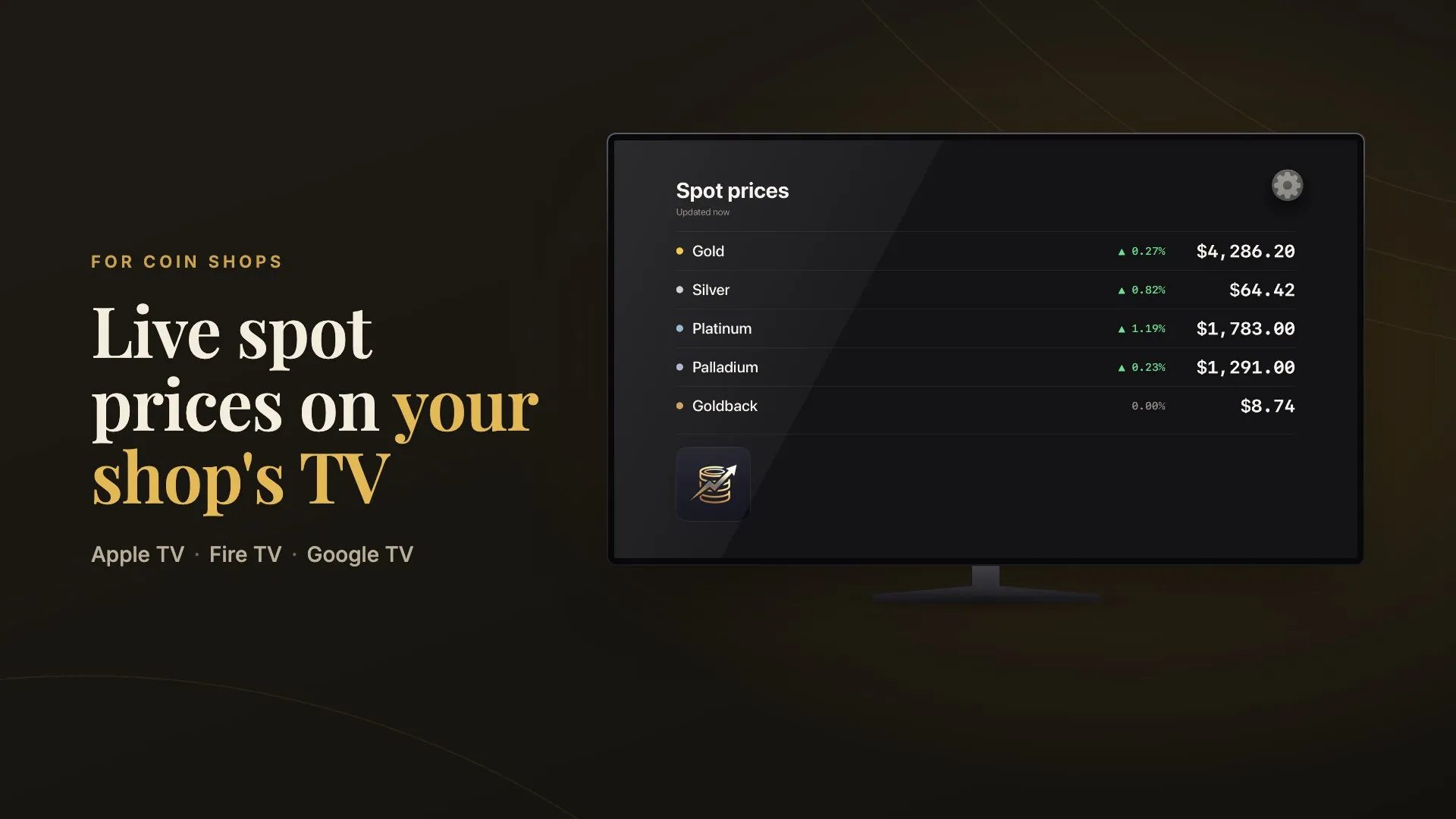
Most coin shops have a screen somewhere showing the day’s spot prices. Customers glance at it before they make an offer or ask for a quote, and it saves the counter from answering “where’s silver today?” every few minutes.
The usual setup is a small computer under the counter, an HDMI cable running up the wall, and a browser open to a price website. It works, but it’s more equipment than the job needs. The My Coin Stack TV app does the same job with just the TV and a streaming device, and it’s free to set up.
Where the TV app runs
The app installs straight onto the TV or the streaming stick plugged into it:
- Apple TV
- Amazon Fire TV, including Fire TV sticks and TVs with Fire TV built in
- Google TV and other Android TV devices
- Samsung smart TVs (coming soon)
- LG smart TVs (coming soon)
If your shop TV already has one of these, you don’t need to buy anything. If it doesn’t, a streaming stick is a small one-time cost, and it plugs into an HDMI port and hides behind the screen.
What it shows
One full screen of spot prices, sized to be read from across the room: gold, silver, platinum, palladium and Goldbacks. Each metal shows its current price and how far it has moved since the previous close, with a green or red arrow so the direction is obvious at a glance. Under the heading, the screen shows when the prices were last updated.
The TV keeps the prices current on its own through the day. Nobody has to refresh a page or touch the remote.
Why not just plug in a computer?
A computer on a browser tab will show prices too. Here’s what changes when the TV does the work itself.
Setup takes a couple of minutes
With a computer, you need the computer, a spot for it near the TV, a cable long enough to reach, a keyboard and mouse to set it up, and a browser set to full screen. Then you hope it comes back the same way after the next restart or update.
With the TV app, you install it from your TV’s app store, sign in once with your phone, and you’re done. The TV stays signed in, so after a restart or a power cut you just open the app and the prices are there.
Fewer cables and less equipment
A streaming stick plugs into the back of the TV, and on a smart TV with the app built in there’s nothing to add at all. There’s no tower or laptop on a shelf, no HDMI cable taped along the wall, and no wireless keyboard to keep track of. For a shop where the counter and the walls are part of what customers see, that’s a tidier look.
Your computer stays free
A computer running a price display is a computer nobody else can use. It can’t run the register, look up a coin or answer email without pulling the prices off the screen. Leave the shop computer for shop work and let the TV handle the prices.
A cleaner screen than a price website
Websites like Kitco are made to be read up close on a computer. Prices share the page with news headlines, charts, menus and ads, and the numbers you actually want are a small part of the screen. On a TV across the room they’re hard to pick out, and an ad or pop-up can end up being the biggest thing on the wall.
The TV app shows only the prices, in large type on a dark background. Nothing scrolls, nothing pops up, and nothing takes the customer’s attention away from the numbers.
Setting it up
- Create a free My Coin Stack account if you don’t have one, in your browser or in the mobile app. The TV signs in to an existing account, so make the account first.
- Install My Coin Stack on the TV from its app store: the App Store on Apple TV, the Amazon Appstore on Fire TV, or Google Play on Google TV.
- Open the app. It shows a short code, and on Apple TV and Google TV a QR code as well.
- Approve the TV from your phone or computer. Scan the QR code with your phone’s camera, or go to web.mycoinstack.app/activate, sign in and type the code. If you have the My Coin Stack app on your phone, you can also go to You → Connected devices → Link a TV.
That’s it. The TV switches to the prices on its own, usually within a few seconds of approving it. There’s no password to type with the remote.
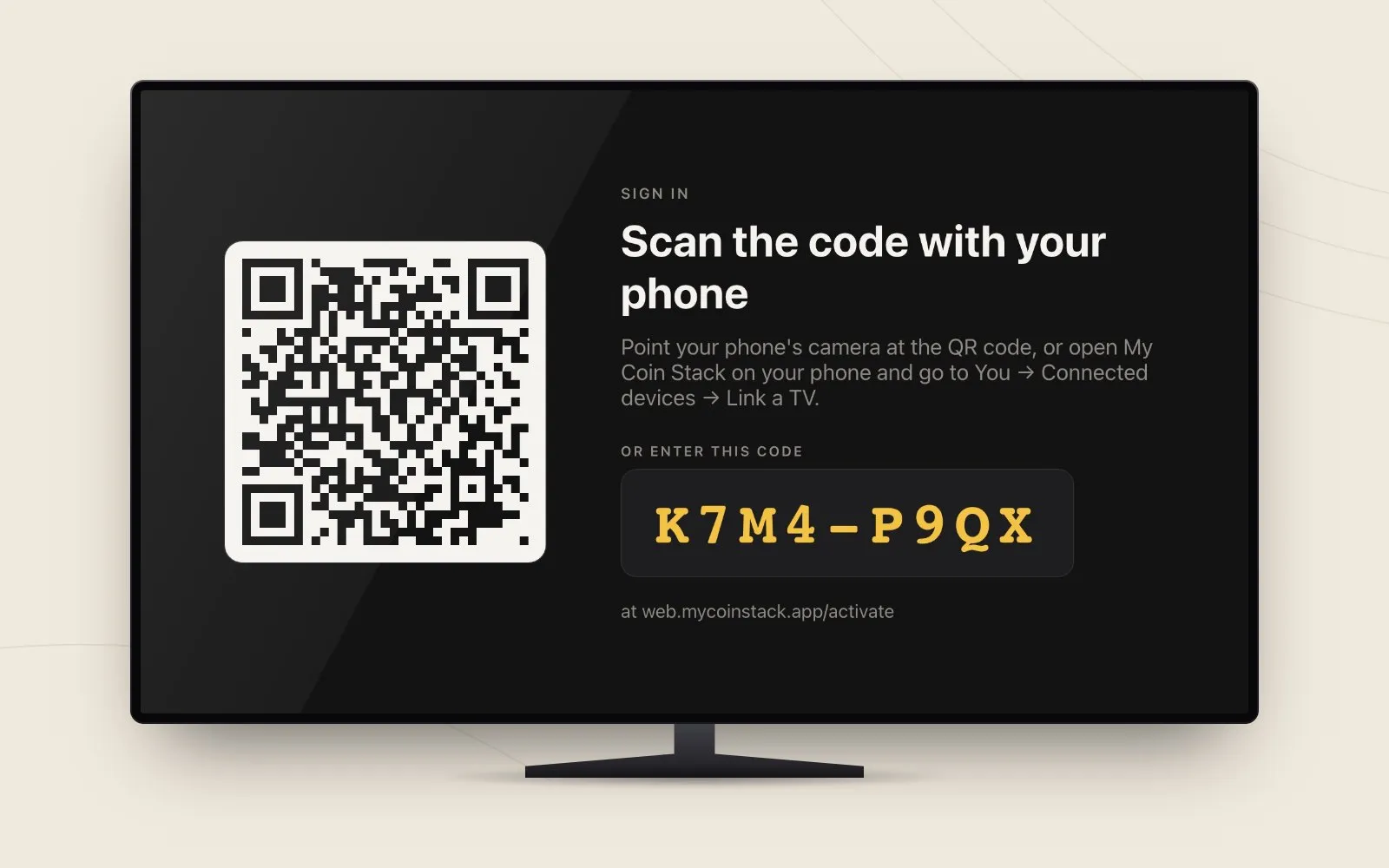
Scan the code with your phone, or type it in on any browser. No password on the remote.
The TV only gets permission to show spot prices. It can’t see your collection or change anything on your account, and you can unlink it from Connected devices at any time.
Choosing which metals to show
Not every shop trades in every metal. If you don’t carry palladium, or your customers don’t ask about Goldbacks, you can hide them so the screen shows only what matters to your counter.
Press the settings button on the prices screen and you’ll find:
- Metals: gold, silver, platinum, palladium and Goldback, each set to Shown or Hidden. A hidden metal drops off the prices screen.
- Keep screen awake: holds the prices on screen instead of letting the TV’s screen saver take over, on the TVs that allow it. It’s off by default. When it’s on, the layout drifts slowly and dims after ten minutes without a button press, to be kinder to the panel.
- Show app icon: adds the My Coin Stack mark below the prices, or leaves it off for a screen that’s just prices.
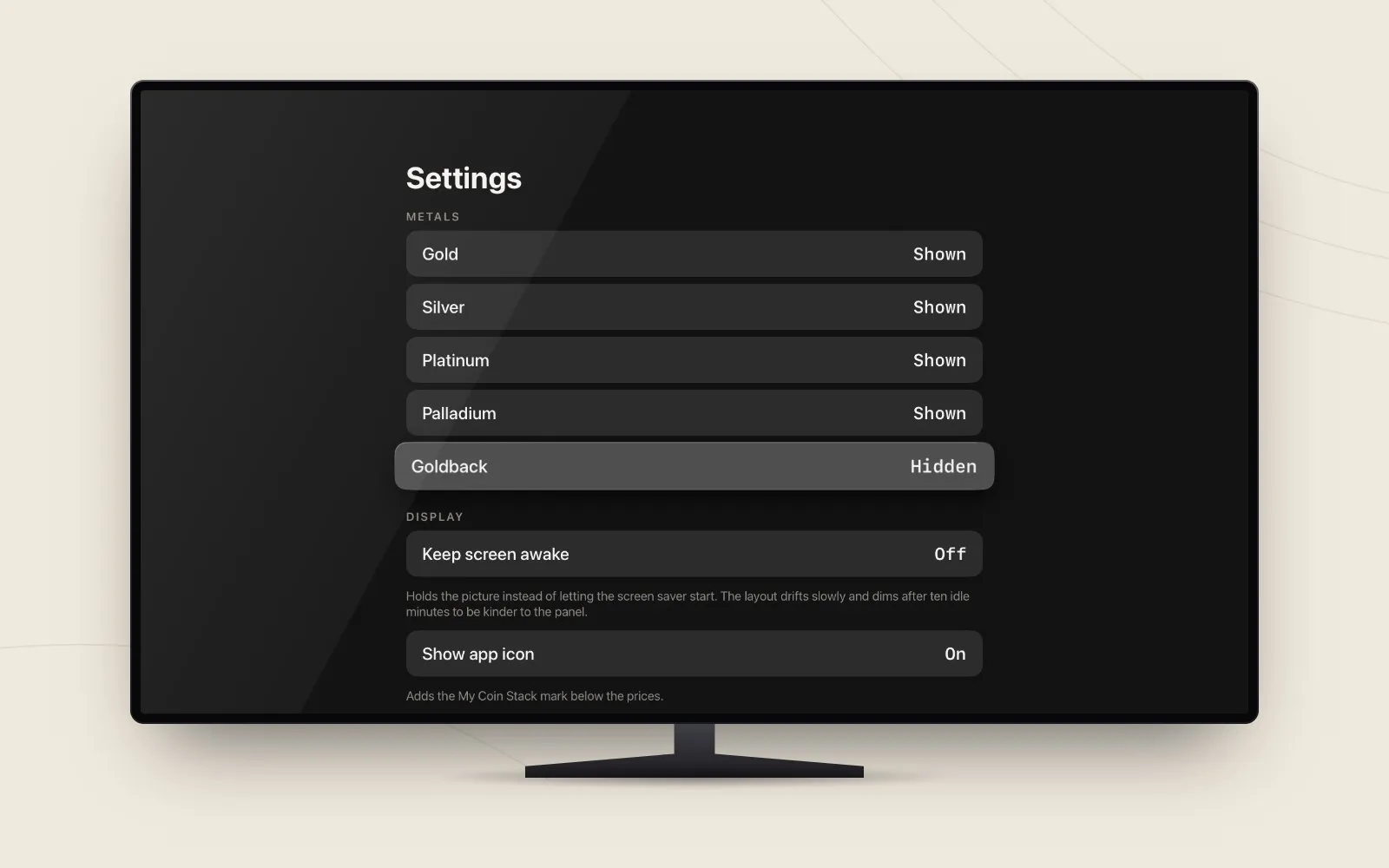
Each metal can be shown or hidden. These settings are saved on that TV.
Settings are stored on each TV, so a shop with two screens can set them up differently: everything on the one by the door, and only gold and silver on the one behind the bullion counter.
It’s free
Creating an account and setting up a TV costs nothing. The spot price display is included on the free plan, and you can link more than one TV to the same account.
The same account also gives you My Coin Stack on the web and on mobile, if you ever want to use it for more than the TV. That includes calculators like the premium over spot comparison, which work from the same live prices on the wall.
Keep reading
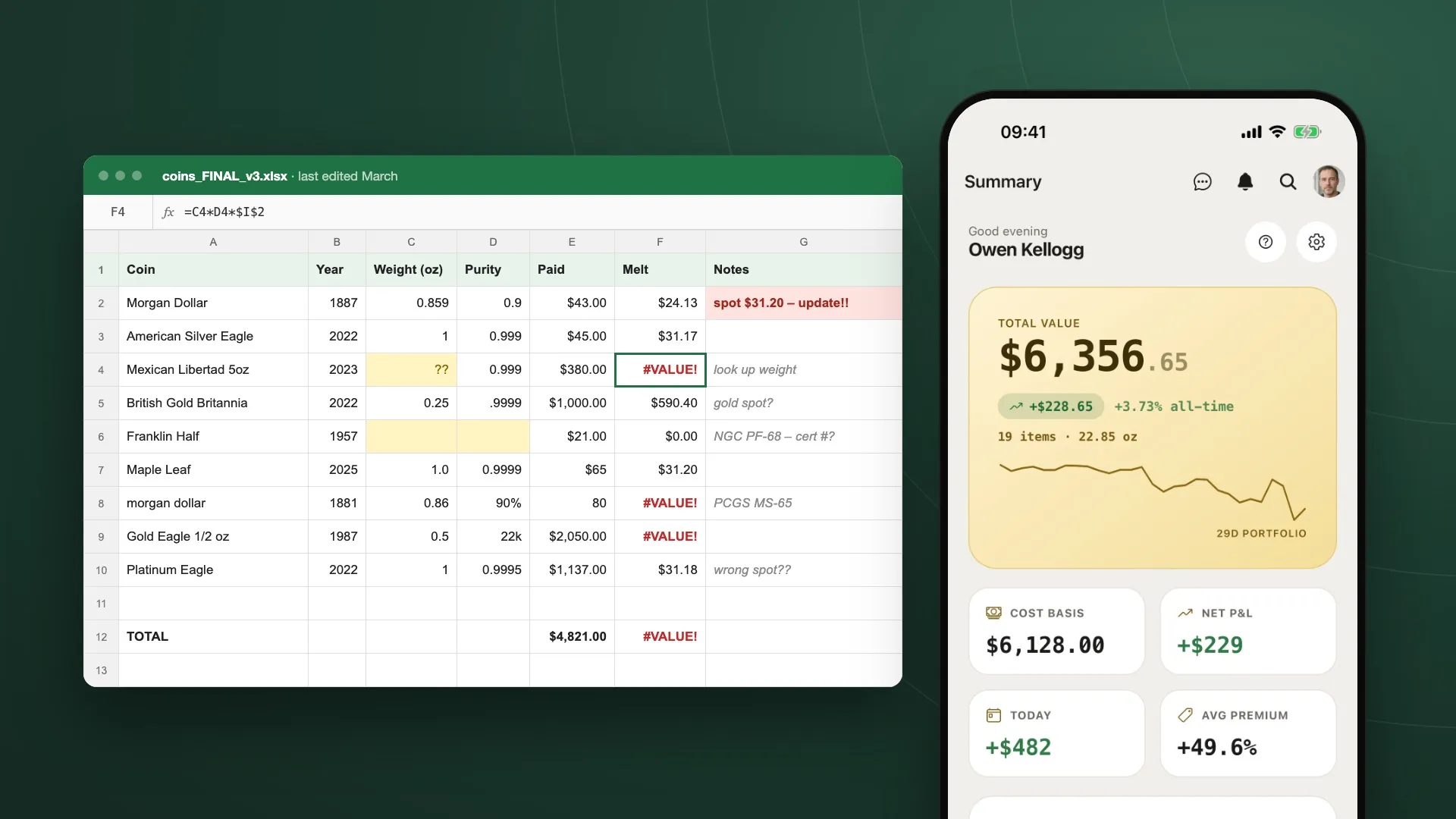
Coin Collection Spreadsheet vs. an App: What You Gain
Spreadsheets are where most collections start. Where they fall short: stale spot prices, hand-typed weights, fragile formulas, and a file stuck on one computer.
Inside the Catalog: 65,000+ Coins From 200+ Countries
One search covers more than 65,000 coins from over 200 countries, with mintages, key dates and design notes, plus weights that fill in when you add a coin.
How to Organize a Coin Collection So the Numbers Mean Something
A collection you've recorded and a collection you can report on aren't the same thing. Five habits that close the gap, and how to catch what's missing.

Put it to work on your own stack.
My Coin Stack is free in any browser, with no card required.